
1. Record your part and send it
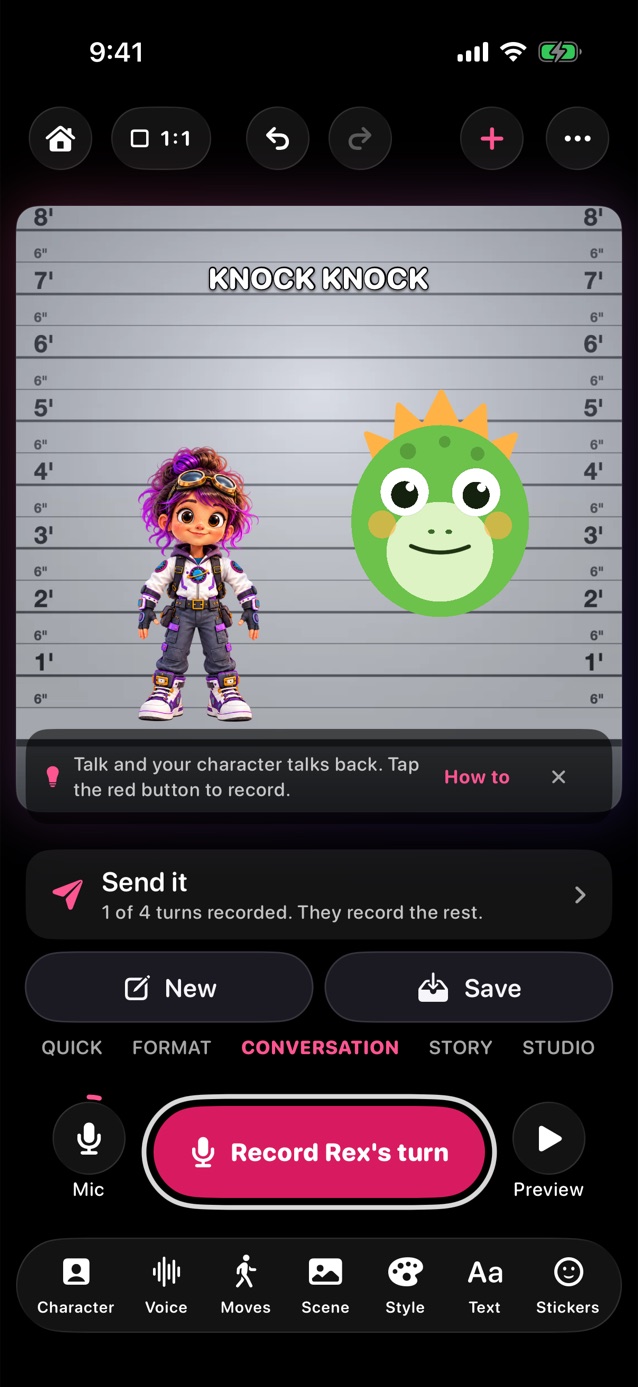
- Pick Conversation above the record button, with two or three characters on stage.
- Tap Send to someone under the stage. Pick Start from an idea for scenes like Knock knock, Guess what! and Story chain, or write your own lines.
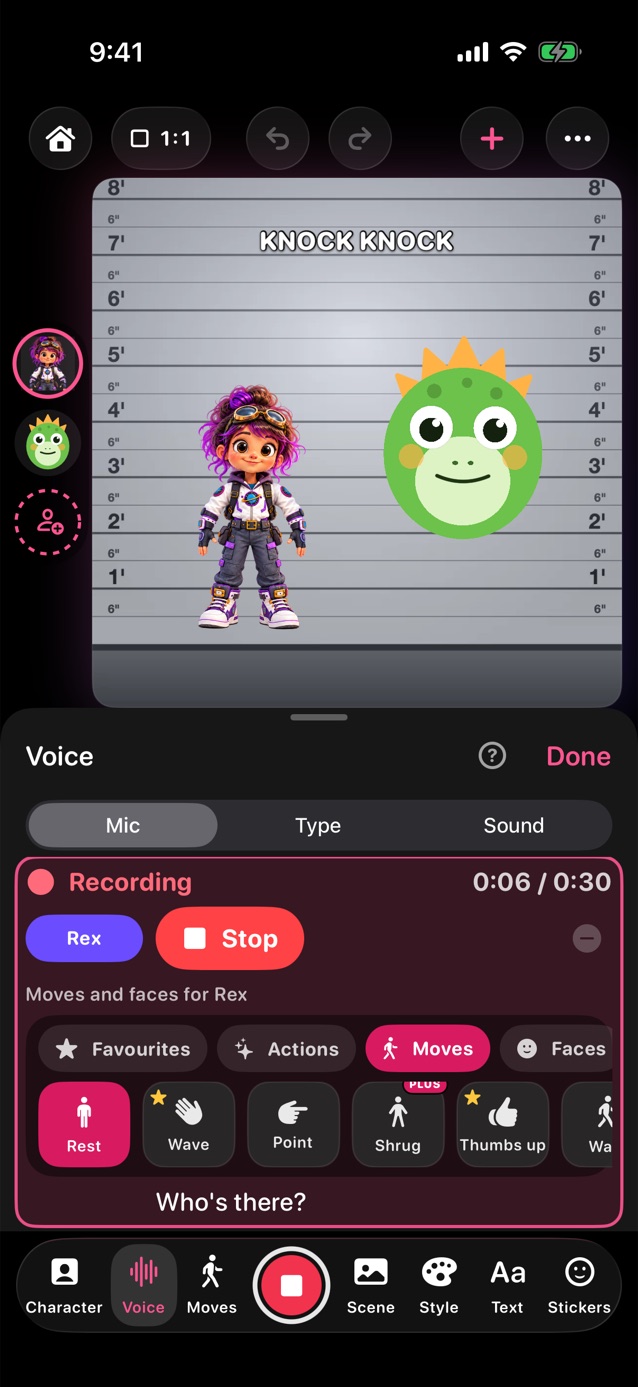
- Pick Record my part first. The big button records each of your turns: you hear the turn before, then 3, 2, 1 and the mic comes on. While a turn records, moves and faces for that character are right under it.
- When your part is in, tap Send it on the card under the stage, then pick Messages, AirDrop or Mail. Or send it before you record and let them go first.
2. Your friend opens it
- In Messages, they tap the file, then Share › YipYappy. In Files or Mail, tapping it opens YipYappy. Don't have the app yet? The message has a link.
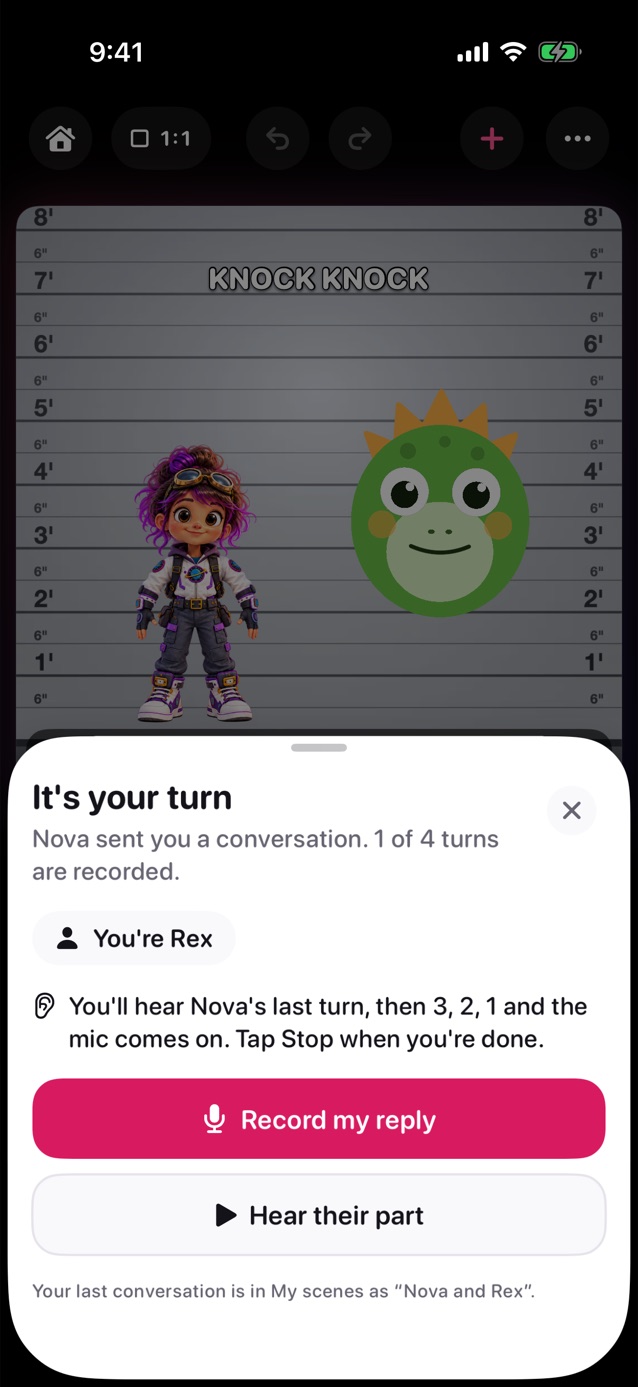
- It opens on It's your turn. It says who sent it, how many turns are in and which character is theirs.
- Hear their part plays what you recorded. Whatever was on their stage is kept in My scenes first, so nothing is lost.
3. They reply and send it back
- They tap Record my reply. Your last turn plays, then 3, 2, 1 and the mic comes on. They tap Stop when they're done.
- Moves and faces for their character are right under the recording turn. Tap one while talking and it's kept with the turn.
- After each turn they can play it back, redo it or record the next one. Then they tap Send it back.
- Whoever records the last turn can tap Make the video to record the clip with everyone's voices, or send it back so the other person can make it too.
Good to know
- No account needed. The scene travels as a small file you send yourself; nothing goes through a YipYappy server.
- Each time it comes back, it opens with the newest turns.
- Save, under the Send card, keeps the conversation in My scenes to carry on later. New starts another one with the same characters.
- Pictures and characters you made go with it, so it looks the same on their phone.
Related
Still stuck? Email hello@yipyappy.com with your device and what happened.