Step by step
- In Pro Studio, Undo and Redo are the curved arrows at the top.
- Undo takes back the last change: moving the character, a new background, a deleted title, even Reset scene. Redo puts it back.
- Each drag, pinch or twist on the stage is one step. Undo remembers your last 60 changes until you close the app.
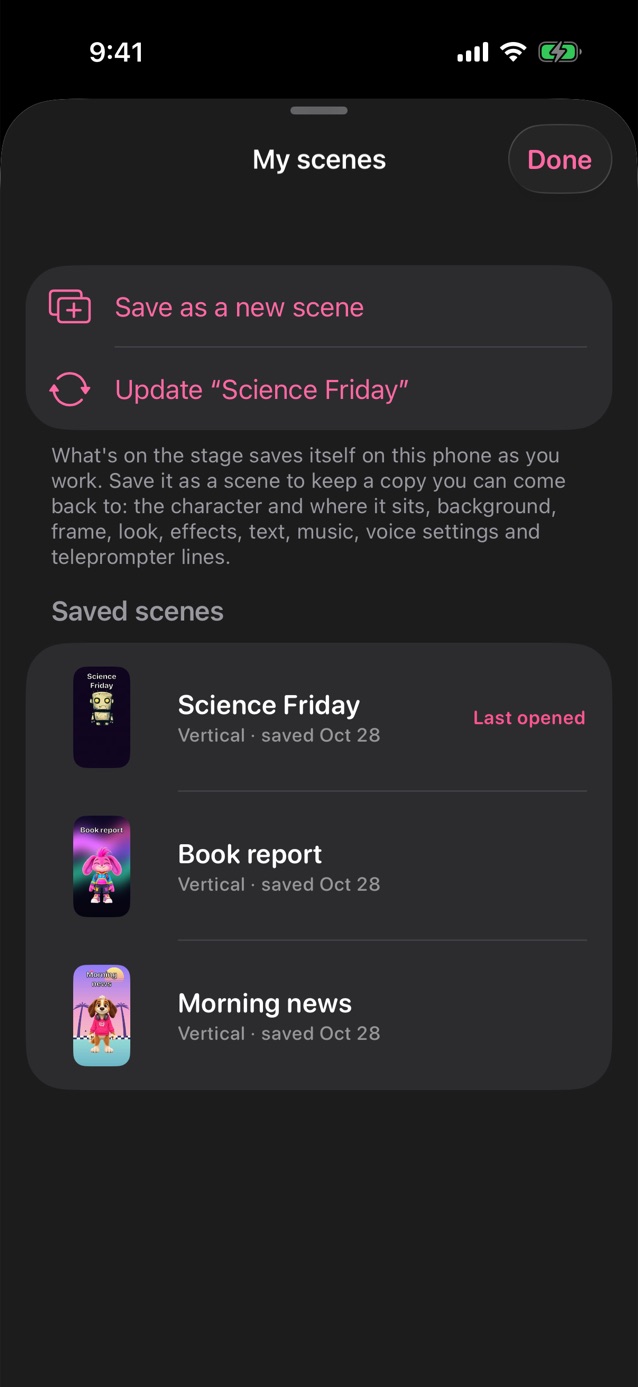
- To keep a set-up, tap ••• at the top, then My scenes › Save as a new scene, and give it a name. The + at the top opens My scenes too.
- A scene keeps the character and where it sits, the background, frame, style, particles, text, music, voice settings and teleprompter lines.
- Tap a saved scene to put it back on the stage. Changed your mind? Undo goes back.
- Swipe right on a scene to duplicate it, left to delete it, or press and hold to rename or update it.
- Making a series? My scenes › Make a show from this stage. Tap the show for each new episode: the script starts empty, and the clip is named “Show · Episode 12” and saved in the show's folder.
- The gear beside a show sets its intro and outro: a title card made from the scene, or a clip from Clips. They're joined on when each episode is saved.
Good to know
- Saved scenes stay on your device, like your clips. They aren't uploaded anywhere.
- For a class, a lesson link gives every student the same set-up on their own device.
- If a scene's character has been deleted since, the scene still opens, with another character standing in.
Related
Still stuck? Email hello@yipyappy.com with your device and what happened.