
Step by step
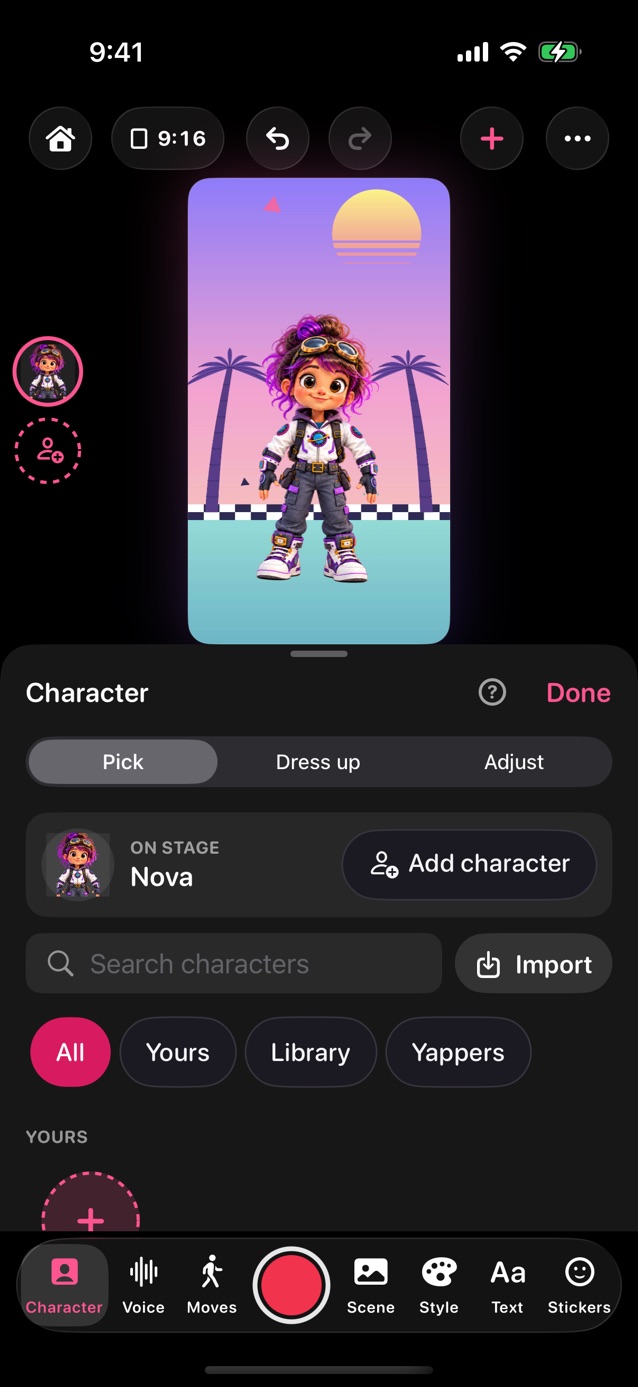
- In Pro Studio, tap Character, or tap the character on the stage.
- Who's on stage shows beside it; tap the dashed button there to put another one on. In the panel, use the chips: All, Yours, Library or Yappers. Yours holds the Yappers, pictures and character files you've made or brought in.
- Swipe a row for more, or tap See all beside its name. Search finds anyone by name.
- Tap New to make your own (a Yapper, a drawing or a photo) or to import a character file.
- Tap Dress up for hats, glasses and more. What's worn shows at the top, with buttons to make it smaller or bigger, put it back in its usual spot, or take it off. Reset, at the top of the panel, goes back to the character's own outfit.
- Tap Adjust for size, angle and position, Mirror and head follow; Reset, at the top, puts it back. Tap a slider's number to type an exact one. How big the moves are is Energy, in Moves.
Related
Still stuck? Email hello@yipyappy.com with your device and what happened.