What happens in the video
A teacher makes a lesson link for “The water cycle” on a computer, with the task, lines to fill in, a three-line checklist, a scene, a character and a 30-second limit, and gets a QR code. A student scans it and lands in Pro Studio with the task on screen. Maya, Leo and Ava each record one stage of the water cycle with a different character. The teacher puts the class's clips together into one class video with each student's name.
Start here
See it on the iPad
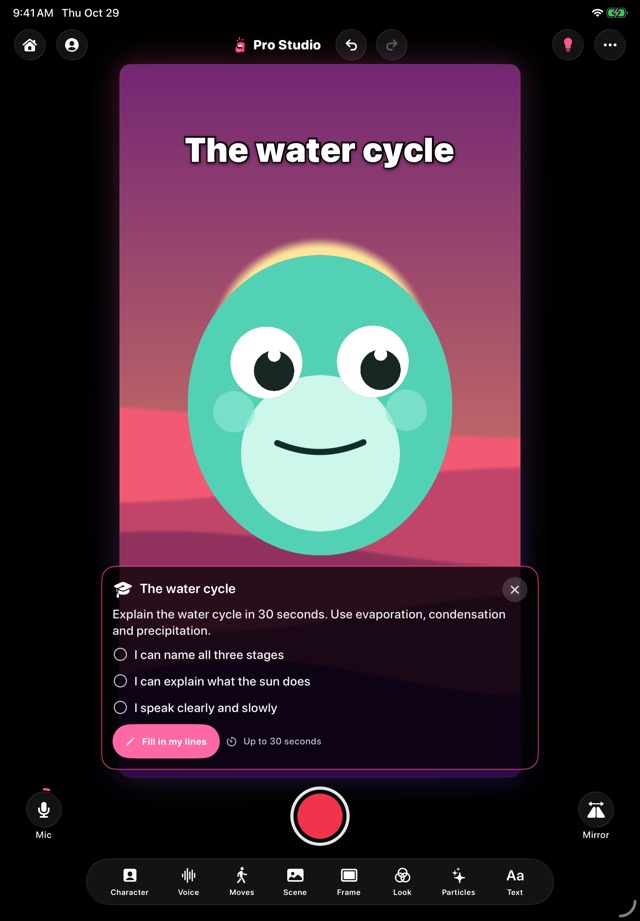 Pro Studio
A lesson, ready to record
The task, a checklist and the student's lines, with the scene and character you chose.
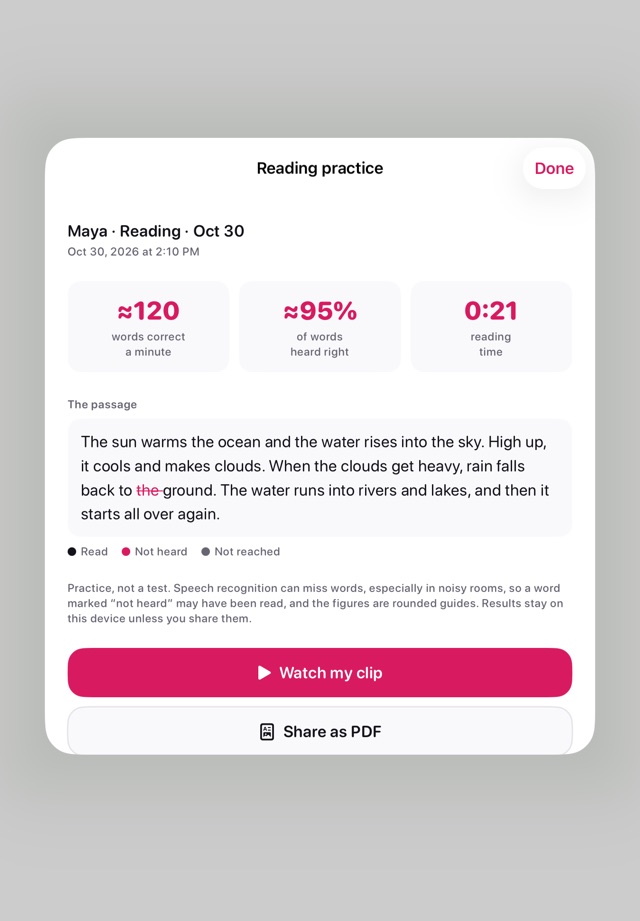 Reading practice
Words correct per minute
After a read-aloud: a rounded estimate, the time and any words it didn't hear, worked out on the iPad.
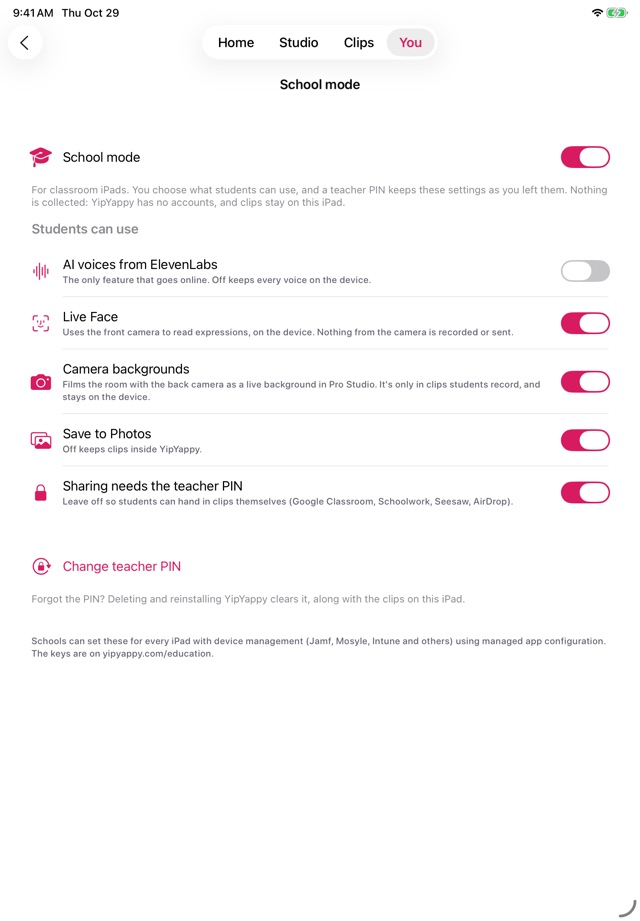 School mode
Teacher controls
A PIN-locked set of switches, or set them for every iPad from your device management.
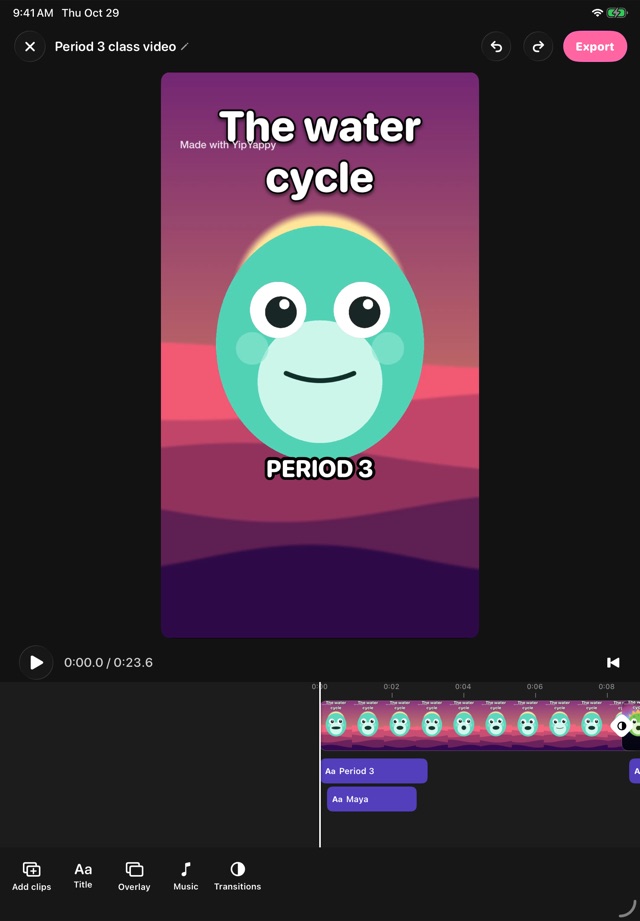 Class video
One video for the class
Every clip in a class folder, with each student's name, ready for families.
Lesson links
Set up a task once and give the whole class a link. Write the task, leave [blanks] in the lines for students to fill in, add an "I can…" checklist, and choose a scene, a character and a time limit (or leave each to the student). You get a link and a QR code.
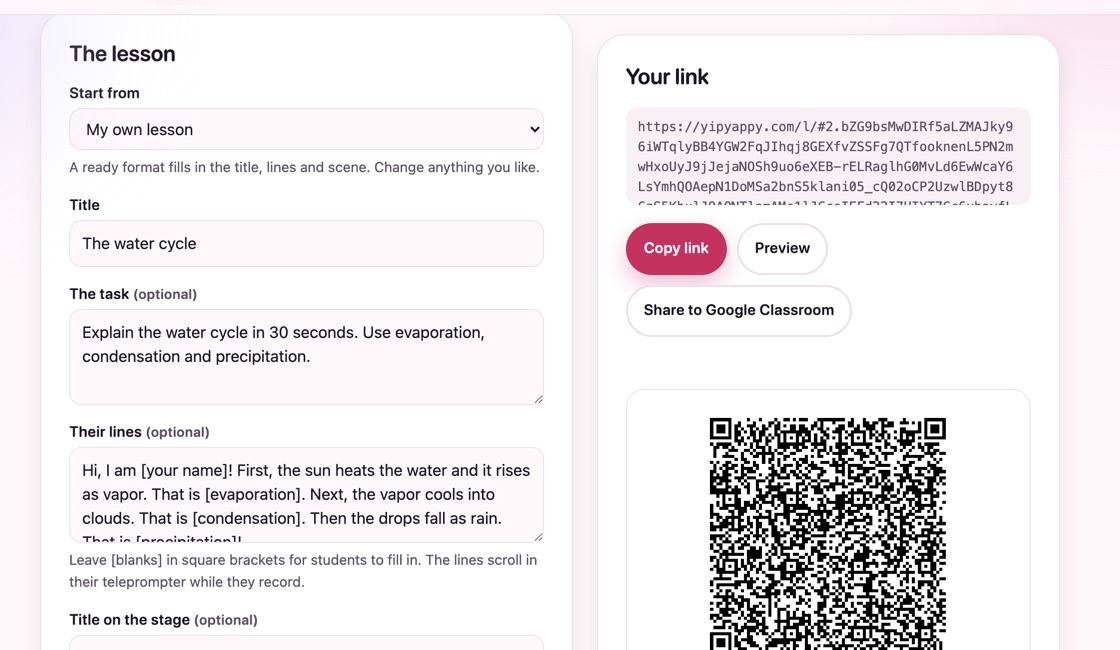
Share to Google Classroom and Share to Teams start an assignment with the title, task and link filled in; Copy for Canvas copies them, with the hand-in steps, for an assignment's description. Or post the link in Seesaw, Schoology or an email, or put the QR code on the board or a worksheet. Students tap it or scan it and land in Pro Studio with everything set up, their lines in the teleprompter and the task on screen. Their clips are named after the lesson. The whole lesson is inside the link itself, so nothing is stored online and there are no accounts.
Or in the app: You › Make a lesson link.
Conversation lessons: add a second or third character and write who says each line, like an interview, a debate or a dialogue in a new language. Students get all the characters on the stage and the lines with your [blanks], fill them in, and each character speaks in its own voice. Needs YipYappy build 8 or later.
Classroom activities
The YipYappy Lab has 69 ready-to-teach activities from Pre-K to grade 8. Each one has materials, steps, suggested standards, a rubric, a student view to project and a printable storyboard, and ends with students making a character explain what they found. A few to start with:
Why it works in class
- Shy students speak up. Talking through a character takes the pressure off presenting.
- Every student can take part. Students who'd rather not speak can type, and the character reads it aloud with a free voice made on the device.
- Practice that's fun to replay. Reading fluency, new vocabulary and language practice turn into short videos students want to watch back.
- Their own characters. Students can draw a character, make any picture talk, or build a Yapper, then dress it up.
- Role-play on every iPad. Up to three characters talk in one scene. With Send to someone, each student records their own character's lines on their own iPad and passes the scene on, so nobody waits around one device.
- Gestures they plan. Students write moves like {wave} or {think} into their lines, and the character does them on that word as they read. Planning the gestures is part of planning the talk.
Private by design
- No accounts or sign-in. Students don't share a name, email or birthday.
- Nothing collected. No ads, no analytics and no tracking. Clips and characters stay on the device.
- The camera is optional. Quick Yap, the simplest mode, never uses it. Live Face reads expressions on the device and records nothing from the camera.
- Captions and voices are made on the device. Speech isn't sent to a server.
- Grown-up check before a clip can be shared from Quick Yap, and School mode for teacher controls (below).
The only optional online service is ElevenLabs voices, which need the user's own ElevenLabs account and ask permission first. Read the full privacy policy.
Lesson ideas
In Pro Studio, choose Format above the record button and tap Idea starters for ready-made formats with a script to fill in. These ones are built for school. Each sets up the whole video for the class screen: 16:9, a classroom background and frame (Shuffle tries another), a reading pace a little slower than the creator formats, captions that are easy to read, and moves that play as students read their lines.
More to try:
- Language practice: students record a short dialogue, then add auto-captions to check their words.
- Interviews and news reports: the two-character Short interview and News explainer formats add a second character; partners take turns on the mic or each record on their own iPad.
- Reading fluency: see Reading practice below.
- Story retelling: see Story mode below.
- Exit tickets: one sentence on what they learned today, said by their character.
Story mode
For retelling and narrative writing: in Pro Studio, choose Story above the record button. Students record the beginning, middle and end, each with its own scene and a prompt ("What's the problem? What happens?"). Any part can be recorded again. Make my story puts them together on the timeline with titles, ready to add music and export as one video.
Reading practice
Put a passage in the teleprompter (Voice › Teleprompter, or send it in a lesson link) and turn on Reading check. After the student reads it aloud, YipYappy shows an estimate of words correct per minute and of the share of words heard right (rounded, since speech recognition can miss words), and the reading time, with any words it didn't hear crossed out in the passage. Very short readings show the time without a per-minute figure. Students can share it as a one-page PDF, and the result stays with the clip (tap Reading on the clip).
It's practice, not an assessment: speech recognition can miss words, especially with young voices or a noisy room, so use it as a guide alongside your own listening. The speech is recognized on the device, and results stay on it unless someone shares them.
Languages
In You › Voices and captions, pick the language characters speak in and that captions and the reading check listen for: Spanish, French, Mandarin, Arabic and dozens more, all on the device. It's made for world-language classes and English learners: students can hear a script read in the new language with AI Voice, or record themselves and check their words with captions. Captions need the language's speech recognition on the iPad; voices work in every language listed.
Translate, beside the script in AI Voice, puts a script or a whole conversation into another language on the iPad, keeping its moves and pauses, and can switch the characters to speak it. Students can compare the two versions, or hear their own writing read in the language they're learning. Each language downloads once, the first time it's used (iPadOS 18 or later).
Classes and groups
In the Clips tab, make a folder for each class or group, like "Period 3" or "Group 2: The Owls". Open a folder and tap Save here, and every new recording on that iPad goes straight into it, with the group's name in the clip's title. Perfect for a shared iPad at a station. Move clips between folders any time, and share a whole folder at once.
Handing in work
In You › Student name, type the student's name once. Every new clip on that iPad then starts with it, like "Maya - Book report - Oct 16", and shared files carry the same name, so handed-in work is easy to sort. Change it at the top of Clips when the next student takes a shared iPad.
Schoolwork: assign a YipYappy activity in Schoolwork, including any lesson link you made in the app (it appears under Lessons). Students tap it to open YipYappy at that task, and you see their progress: time spent, whether the clip was recorded, checklist ticks and reading results. See Schoolwork and handing in work.
Students tap How to hand it in on their clip, pick their class's app (Google Classroom, Teams, Canvas, or Schoolwork and Seesaw) and follow the steps shown, then tap Share the clip. Any app that accepts videos works, and AirDrop too. The Classroom walkthrough has a table for each platform. To collect a whole group's work, open its folder and tap Share to send every clip, or choose Share as one ZIP from the folder's menu.
Showing the class's work
Open a folder and tap Play all (or choose it from the folder's menu). Every clip plays full screen, one after another, with a big name card before each one, ready for a projector, AirPlay or Apple Classroom. Clips play in the order they were recorded, or by name when Clips is sorted by name.
Make a class video in the folder's menu puts every clip on the timeline with the class's name at the start and each student's name as their clip begins. Add music, change any title, then tap Export for one video to share with families or the school.
School mode
In You › School mode, a teacher sets a 4-digit PIN and chooses what students can use:
- AI voices from ElevenLabs: off by default, so every voice is made on the device and nothing goes online.
- Live Face: on by default. It reads expressions with the front camera on the device and records nothing from the camera.
- Camera backgrounds: on by default. Pro Studio's Live camera and Stand in the room film the room behind the character with the back camera, and the room is part of the clip. Turn it off if students shouldn't film the classroom.
- Save to Photos: turn it off to keep clips inside YipYappy.
- Writing help: off by default. Write it for me and Writing Tools (Apple Intelligence) write or rewrite a script, and Translate puts it in another language. Turn it on when the writing isn't the assignment.
- Sharing needs the teacher PIN: turn it on if students should only share with you there. Leave it off so they can hand in work themselves.
Changing School mode needs the PIN. If it's forgotten, deleting and reinstalling the app clears it (along with the clips on that iPad).
For schools and IT
Deploying YipYappy across a school? For schools and IT covers device management and managed app configuration, supported iPads, on-device privacy, network needs, and how work is handed in to Schoolwork and other apps.
What you need
- iPad or iPhone with iPadOS or iOS 17 or later. There is no Chromebook, Android or Windows version.
- Live Face needs a device with Face ID. Everything else works on any supported device. See supported iPads.
- Library characters and scenes download the first time they're used; after that the app works offline.
Step-by-step guides
Using YipYappy with a class? We'd love to hear how. Email hello@yipyappy.com with questions or ideas.