Step by step
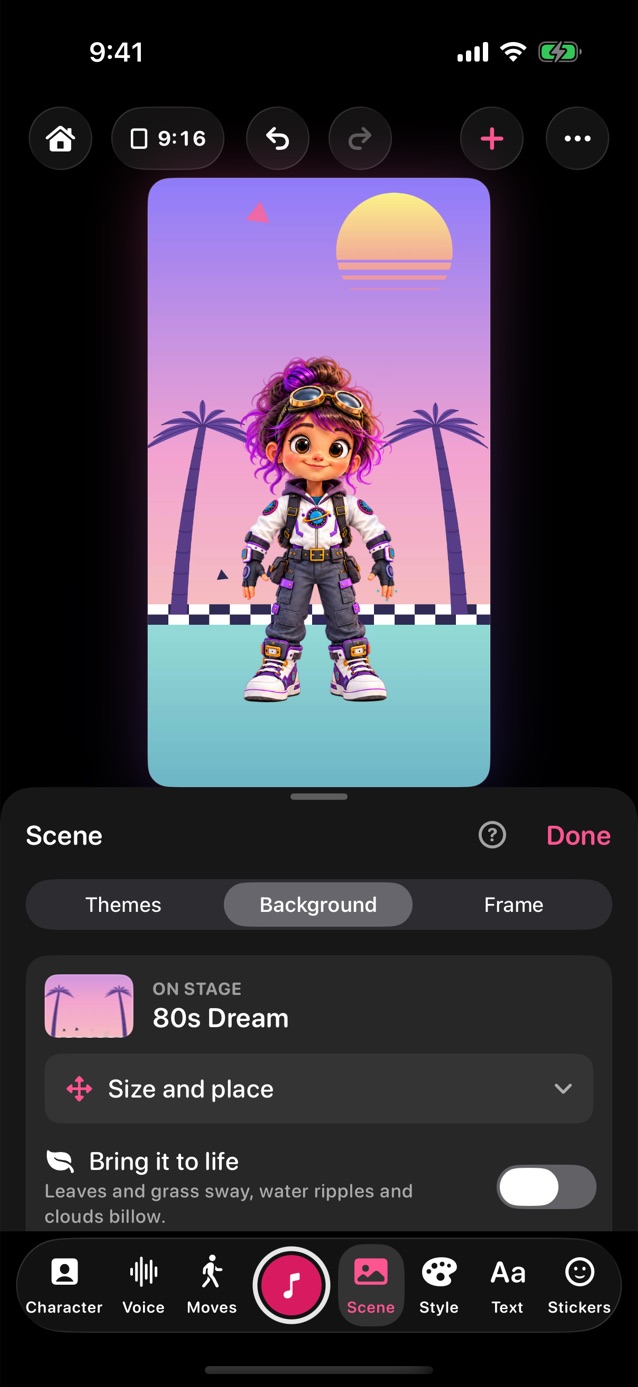
- In Pro Studio, tap Scene in the dock. Themes, Background and Frame are at the top of the panel. How the character comes on and goes off is in Moves, under Enter/Exit.
- Themes put a background and a frame on together, in one tap. Remove theme takes it off. Change either part after in Background or Frame.
- Background: On stage, at the top, shows the one in use. Its Size and place makes the background bigger, turns it or moves it: open it, then drag, pinch or twist the stage. Reset puts it back.
- Under it, search, or tap the filter button to show only Backgrounds, Animated, Your own or Colors. The buttons under the search sort by subject, like Nature & Sky, School, Party or Space; tap one again for everything. Themes and Frame have the same ones.
- Tap a background to put it on. Swipe the rows for more. See all, beside Backgrounds or at the end of the rows, opens a bigger grid you can search; pick one and the grid stays open, so you can try a few. Animated, Your own and Colors are rows further down.
- Bring it to life, in On stage for a picture background or your photo, makes it gently move: leaves and grass sway, water ripples and clouds billow. It's in your video too.
- Border, in On stage, puts a line round the edge of the background, behind the characters. Pick a colour, then set Thickness and Rounded corners; the first swatch takes it off.
- Your own: tap Take photo to use the camera, or Photo or Video to use one you have. Green and blue screens are under Colors.
- Live camera puts what the camera sees behind your character, and it's filmed into your clip. Portrait blur, under it on newer iPhones, softens what's behind the subject like Cinematic mode; Blur sets how much.
- A video with sound? Turn on Keep the video's sound, in On stage, and set its Volume. It plays while you record and it's in your clip. With the mic and no headphones it's added afterwards, so it doesn't get into your voice.
- Or tap Playground in Your own and pick a style: Cartoon, Illustration or Sketch. Pick an idea like Sunset beach or Storybook village, or describe a place, and Image Playground draws it as your background.
- Frame adds a border around the whole clip. Each tile shows the frame over your own scene, so you can see how it will look. Once one is on, Size and place sits under the frames: drag, pinch or twist it on the stage, even over the character. Original size and place puts it back.
- Frame border, under Size and place, outlines the frame's window, or the edge of the stage for a frame without one, in front of everything. It has the same colours, Thickness and Rounded corners.
- Breaking News is a built-in frame with a LIVE tag and a strip along the bottom. Add Ticker text and it scrolls through the strip.
Related
Still stuck? Email hello@yipyappy.com with your device and what happened.