Step by step
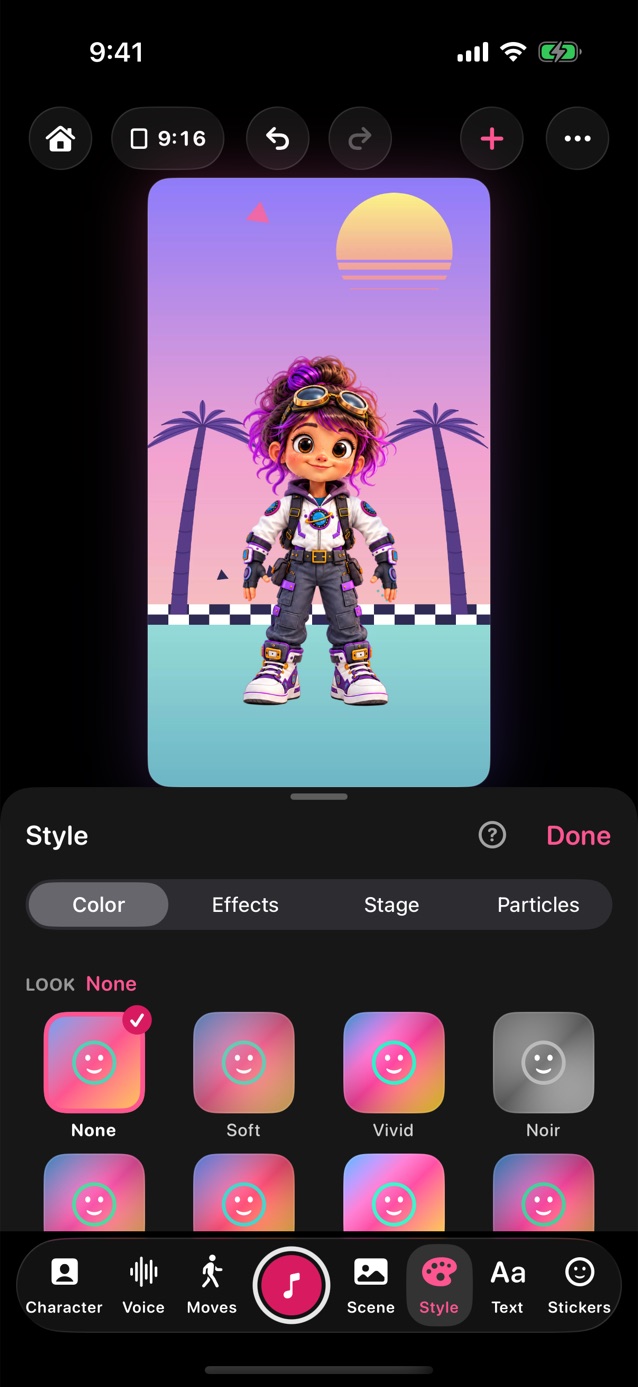
- In Pro Studio, tap Style in the dock, then Color at the top of the panel.
- Tap a look, like Soft, Vivid or Noir. Its name shows beside Look; after you change a slider it says Custom.
- Applies to: choose Background, Character or Whole stage.
- Under Adjust, tap an icon like Brightness or Hue, and drag the slider under it. Sliders that go both ways catch at the middle.
- Blur always softens the background only.
- Effects, next to Color, redraws the stage as 8-bit pixels, a pencil sketch, marker, comic dots, a glitch or an old TV. Amount sets how strong, and Applies to picks the background, the character or the whole stage. They're in your video too.
- Turn on React to talking and the effect grows while someone talks and fades when it's quiet.
- Stage, next to Effects: Floor gives the characters a reflection to stand on: Shiny, like a polished floor, or Water, rippling. It drops away when they jump.
- Spotlight shines on whoever is talking and moves to the next speaker: White, Warm or Party (changing colours). Camera follows who's talking moves in a little on them.
- The characters' own finish, shadow and wobble are in Character, under Look.
Related
Still stuck? Email hello@yipyappy.com with your device and what happened.