
Step by step
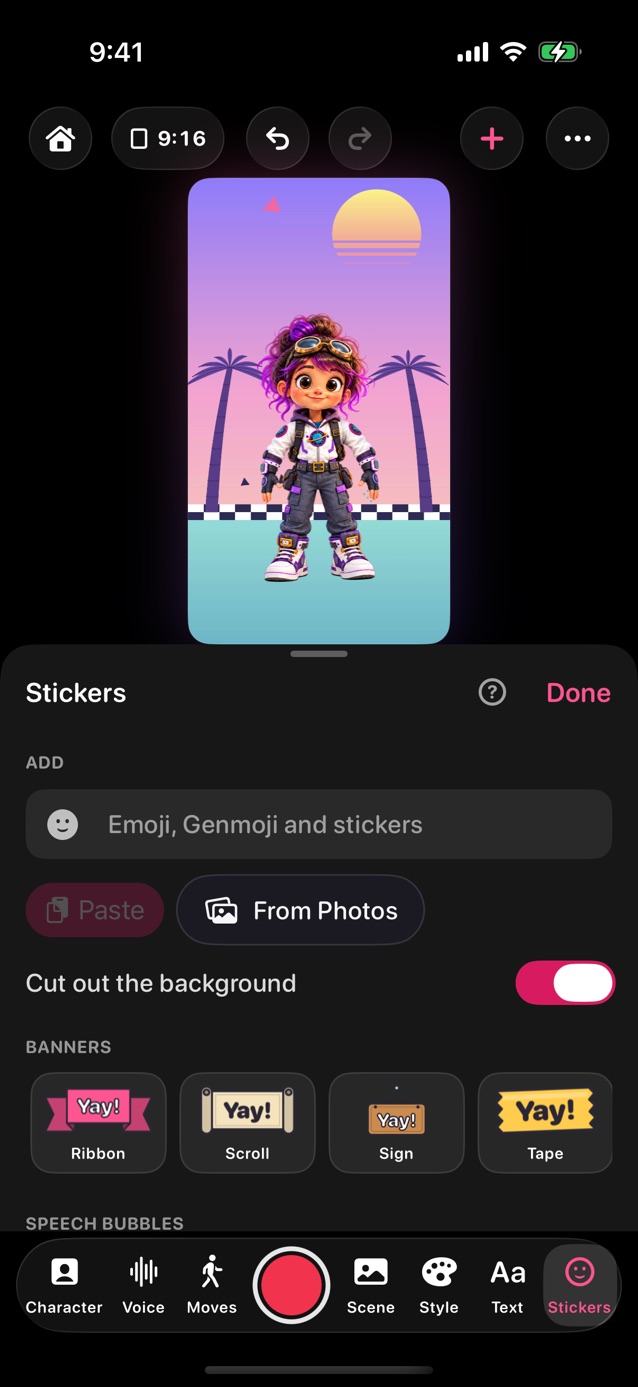
- In Pro Studio, tap Stickers in the dock.
- Tap the Emoji, Genmoji and stickers box. Each emoji or sticker you pick on the keyboard goes on the stage. Genmoji you make there work too, on iPhones with Apple Intelligence.
- Copied a picture or sticker? Tap Paste. In Photos, touch and hold someone or something in a photo, tap Copy, then Paste it here.
- From Photos picks a picture. With Cut out the background on, what's in it is lifted out, and a plain-coloured background comes off too. Turn it off to put the whole picture on.
- Create (on iPhones with Apple Intelligence) opens Image Playground: describe one thing, and it's cut out and put on the stage.
- To change a sticker that's on the stage, touch and hold it (on iPhones with Apple Intelligence). It opens in Image Playground, and what you make takes its place, the same size and in the same spot.
- Ready-made stickers sit in rows below Your stickers, grouped by character or theme. Tap one to put it on the stage.
- Banners and speech bubbles: tap a shape (a Ribbon, Sign or Flags banner, or a Speech, Thought, Shout, Whisper or Comic bubble) to put it on the stage. Its card shows it big, with a box for the words, then Shape, Text and Layout. Shape has the shapes, the color, and a bubble's Tail, which points left or right, toward who's talking. Layout has its size, angle, place and animation. Type new words and it changes.
- Text, beside Shape, styles the words like text on the stage: font, color, outline, size, shadow and letter spacing, and for a bubble, how the lines line up and their spacing. Reset text style puts the words back as they were.
- Drag a sticker on the stage to move it. Pinch to size it and twist to turn it. While it's picked, a pinch or twist anywhere on the stage works on it.
- Tap a sticker to pick it. Its card comes first: Size, Angle, Move, Shows (behind the character, over it, or in front of everything) and an animation, then Flip, Cut out, To front, Reset, and Remove last. Cut out takes the background off a sticker that's already on the stage. Tap the number beside Size or Angle to type an exact one.
- Every sticker you add is kept under Your stickers to use again. Touch and hold one to remove it.
- Stickers stay with the scene, in My scenes and when you Send to someone.
- YipYappy stickers in Messages: in a chat, tap +, then Stickers, and pick a YipYappy character to send.
Related
Still stuck? Email hello@yipyappy.com with your device and what happened.