Step by step
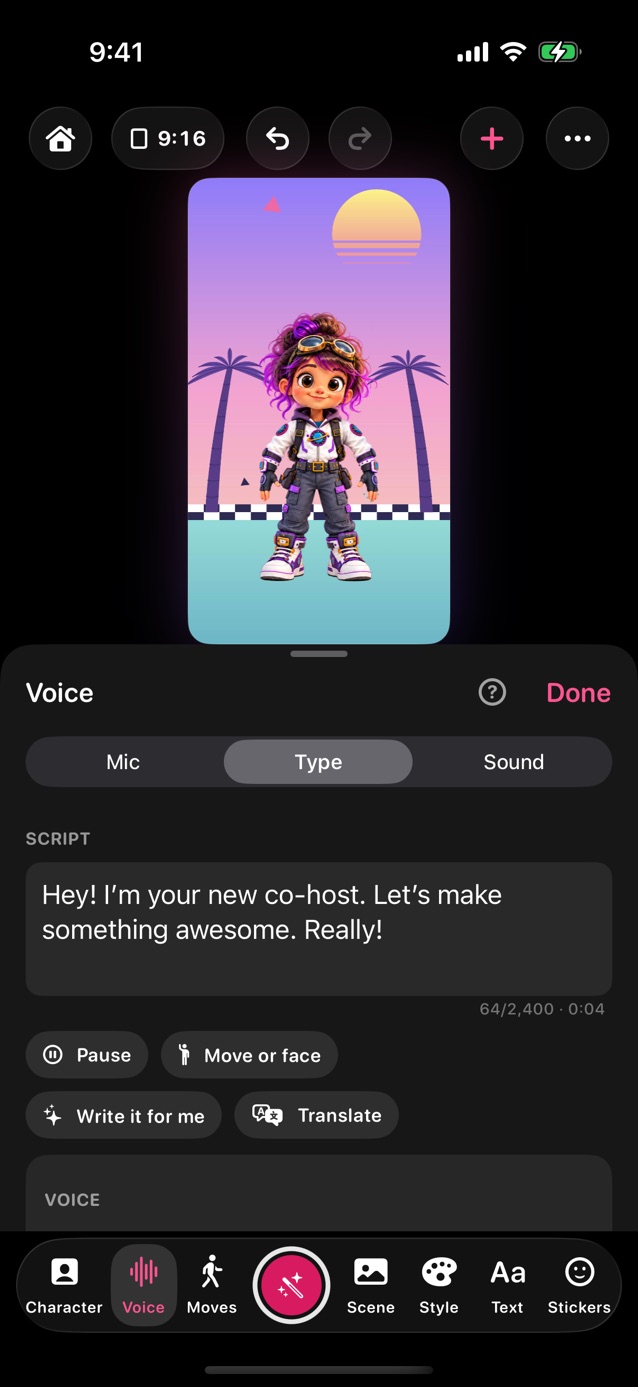
- In Pro Studio, tap Voice in the dock and choose Type.
- Type what your character should say.
- Stuck for words? Write it for me (on iPhones and iPads with Apple Intelligence) writes a short script from your idea, with moves and faces, or changes yours: funnier, shorter, simpler, or just moves added. Read it through, then tap Use this.
- Translate puts the script, or every line of a conversation, into another language, on your device. Moves, faces and pauses stay where they are, and your characters can speak that language too. Handy for ELL and language classes.
- Select words in the script for Writing Tools (with Apple Intelligence): proofread it, rewrite it, or make it friendlier.
- Want moves? Type {wave} or {happy} where they should happen; each plays as the next word is said. [pause 2s] leaves a gap. Move or face and Pause under the script write them in for you.
- Under Voice, pick who says it and how fast. The built-in voices are free and stay on your device.
- Tap Make voice, just under the script. When it says Voice ready, tap play to hear it, or the round arrow to make it again. Reset, at the top of the panel, takes off a voice effect and puts the speed back.
- Tap the red button. The voice plays and the mouth follows it.
- Optional: add your own ElevenLabs key there for studio-quality voices.
Related
Still stuck? Email hello@yipyappy.com with your device and what happened.